Overview
The OpenAPI 3.0 Schema for radixconfig.yaml is available at https://raw.githubusercontent.com/equinor/radix-operator/release/json-schema/radixapplication.json. This schema is an extended subset of the JSON Schema Specification.
The schema can be used in code editors to provide auto completion and schema validation when editing a radixconfig.yaml file.
Visual Studio Code
Ensure that the YAML extension is installed in VS Code.
Create an association between radixconfig.yaml and the JSON Schema by using one of the methods described below.
-
Inline schema association
Add the following line to the top of theradixconfig.yamlfile:# yaml-language-server: $schema=https://raw.githubusercontent.com/equinor/radix-operator/release/json-schema/radixapplication.json -
Using yaml.schemas settings
- Open Extension Settings for the YAML extension.
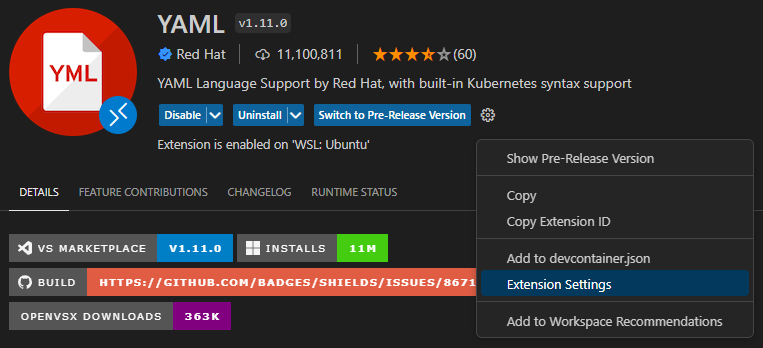
- Scroll down to Yaml: Schemas and click Edit in settings.json

- Add
"https://raw.githubusercontent.com/equinor/radix-operator/release/json-schema/radixapplication.json": "radixconfig.yaml"to the yaml.schemas section.
- Open Extension Settings for the YAML extension.
Read more about schema associations here.
Jetbrains IDEs
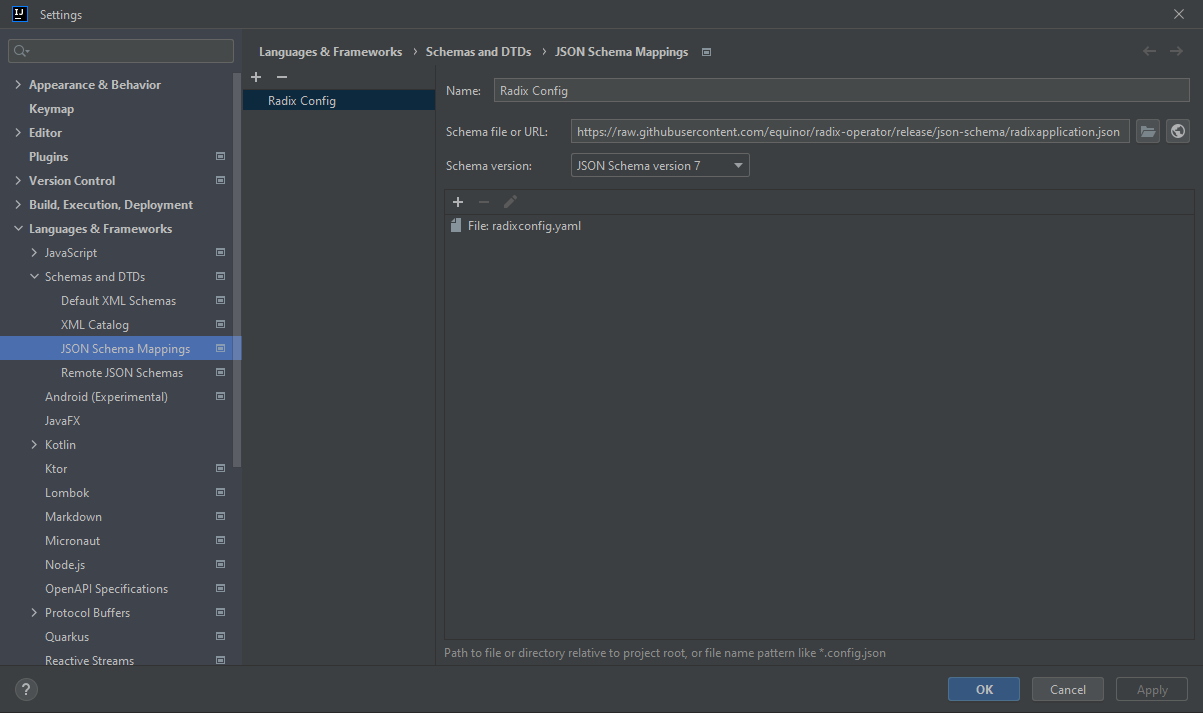
Jetbrains IDEs have built-in support for JSON schemas.
- Open the Settings dialog (
Ctrl+Alt+S) and go Languages & Frameworks > Schemas and DTDs > JSON Schema Mappings. - Click
+on the toolbar. - Insert
https://raw.githubusercontent.com/equinor/radix-operator/release/json-schema/radixapplication.jsonin Schema file or URL and selectJSON Schema version 7in Schema version. Specify a name of the schema in the Name field. - Click
+in the mappings section and select Add file from the drop down list. Insertradixconfig.yamlin the File field. - Click
OKorApplyto save changes.